
How to build a Remote Development Environment

Introduction
Establishing a development environment poses several challenges that developers often encounter in their professional journey. These challenges can range from hardware limitations on their personal computers to versioning conflicts that can arise between different development setups. Furthermore, the cognitive effort required by developers to prepare their development environment is considerably high.
To prevent these issues, we can use the capabilities of cloud computing to transition from a local to a remote development setup. The shift not only provides a solution to hardware and versioning problems but also reduce the cognitive load on developers, allowing them to focus more on coding and less on setup and maintenance.
In this article, we aim to walk you through the process of setting up a remote development environment. We will be using the Google Cloud Platform as our base, specifically the Google Compute Engine for creating a virtual machine. This machine will serve as our remote environment, and we’ll show you how to connect to it using Visual Studio Code, a popular development tool. This comprehensive guide will help you harness the power of cloud computing for more efficient and streamlined development work.
Visual studio code remote development environment architecture
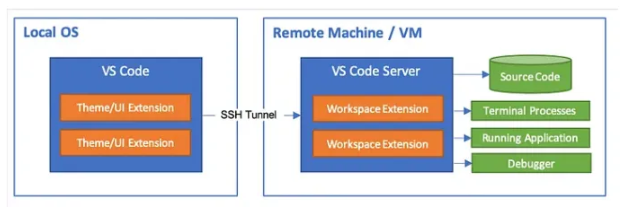
Tools and system version used in this tutorial
Local Environment Setup:
Operating System: Windows 10
Code Editor: Visual Studio Code (Version 1.77.3)
Remote Environment Setup:
Cloud Platform: Google Cloud Platform
Remote Operating System: Ubuntu 20.04.5 LTS
Virtual machine Preparation
In this tutorial, we’ll be utilizing Google Cloud Platform as our chosen cloud service. we will use it to provision virtual machine that will serve as our remote development environment.
To set up a new virtual machine, you’ll need to use Google Cloud Shell. The command (which we will provide shortly) will enable you to provision a machine with the following specifications:
8 vCPUs
32 GB of RAM
100 GB Boot Disk
Preemptible machine type (This option can help reduce costs)
gcloud compute instances create remote-dev-machine --preemptible --machine-type n2-standard-8 --boot-disk-size 100GB --image-family ubuntu-2004-lts --image-project ubuntu-os-cloudMake sure that the firewall rules are configured appropriately. This is necessary to enable a successful connection to your newly provisioned virtual machine.
Set up the connection between local visual studio code and the remote vitual machine
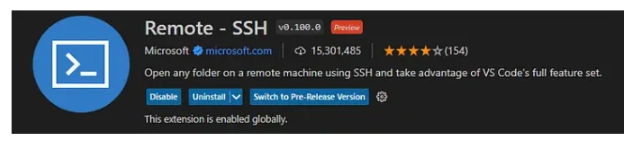
1-Install the following ssh extension for visual studio code
Remote — SSH — Visual Studio Marketplace
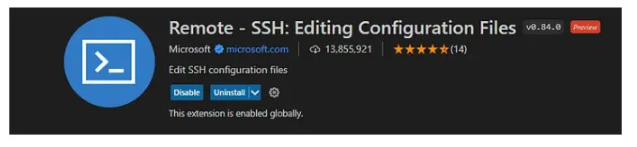
Remote — SSH: Editing Configuration Files — Visual Studio Marketplace
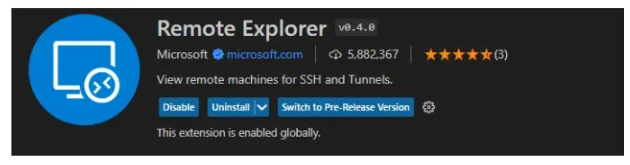
Remote Explorer — Visual Studio Marketplace
2-create a private and public SSH key to be able to connect to the remote virtual machine using visual studio code
open the powershell on windows and then use the command below to generate a private key and a public key
ssh-keygenAfter gernerating the command, copy the private and public keys under the key store /.ssh
3-Add your public key in the authorized_keys file in the remote machine
copy the content of the public key in the authorized_keys, which is located under the keystore of the machine, if the file doesn’t exist, configure it by using this command
vi ~/.ssh/authorized_keys4-add a record for your remote dev machine in the ssh config file in the local machine
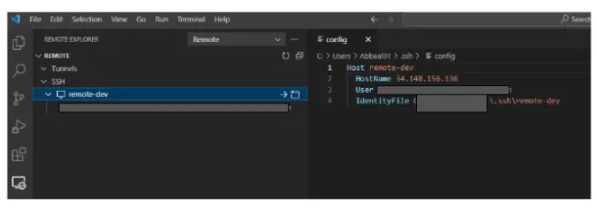
5-Initiate the connection between your local machine and the remote development machine
After initiating the connection with the remote virtual machine through the visual studio code, it will open is into a new window